

Terraria’s 1.4.5 update introduced an issue that many ultrawide and widescreen monitor users immediately noticed — an unpleasant forced zoom that makes the game feel cramped on larger displays.
If you’re playing Terraria on an ultrawide monitor (3440×1440, 3840×1600, 5120×1440, etc.) and want your proper field of view back, this guide walks you through three proven methods to fix the zoom issue.
- Automatic fix using a Python script
- Manual hex editing
- Advanced editing using dnSpy
Each method achieves the same result — restoring proper widescreen scaling.
⚠️ Important Before You Start
- Always back up Terraria.exe before making changes.
- These tweaks modify the game executable. You can restore your backup or verify files via Steam if needed.
Method 1: Automatic Zoom Fix Using Python (Recommended)
If you have Python installed, this is the easiest and safest method.
The script automatically patches Terraria’s executable for your monitor resolution.
What You Need
- Python installed
- The widescreen patcher script from GitHub
Download the script:
https://github.com/Star-F0rce/terraria-145-widescreen
How to Use It
- Place the script in a folder.
- Open Command Prompt in that folder.
- Run the following command:
python WidescreenPatcher.py [C:\path\to\terraria.exe] [monitor width] [monitor height]Example:
python WidescreenPatcher.py "C:\Games\Terraria\Terraria.exe" 3840 2160Launch Terraria and enjoy proper ultrawide scaling.
Method 2: Fixing Terraria 1.4.5 Zoom via Hex Editing
This method gives you full control but requires careful editing.
Step 1: Back Up the Executable
Make a copy of Terraria.exe and store it safely.
Step 2: Open Terraria.exe in a Hex Editor
This guide uses HxD.
Step 3: Search for the Zoom Value
- Open
Terraria.exein HxD - Press Ctrl + F
- Select Hex-values
- Paste the following string:
04 20 80 07 00 00 20 B0 04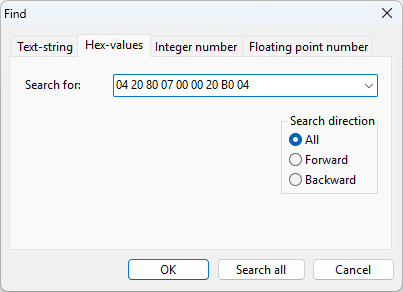

Step 4: Generate Replacement Code
Open the following online Python calculator:
- Click Run
- Follow the instructions
- Copy the generated output
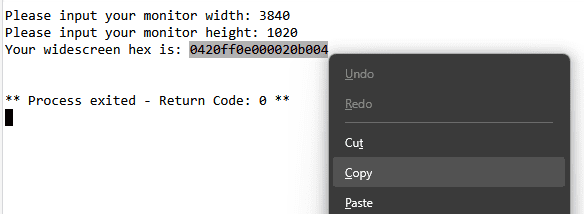
Step 5: Paste and Replace
Return to HxD, press Ctrl + V, and replace the existing values.
Step 6: Save and Launch
Press Ctrl + S and launch Terraria.
Note: If the minimap is disabled, re-enable it from the title screen under General Settings.
Method 3: Fixing Zoom with dnSpy (Advanced Users)
Step 1: Download dnSpy
Step 2: Open Terraria.exe
- Open dnSpy
- Go to File → Open
- Select
Terraria.exe
Step 3: Navigate to Main Class
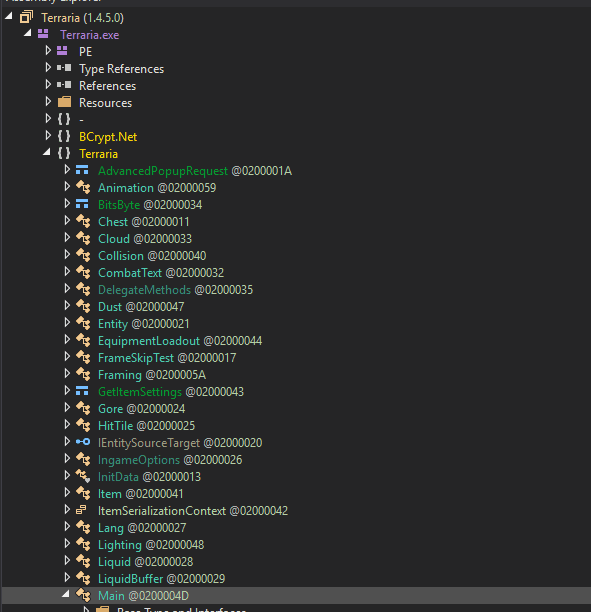
Step 4: Locate MaxWorldViewSize

Step 5: Edit IL Instructions
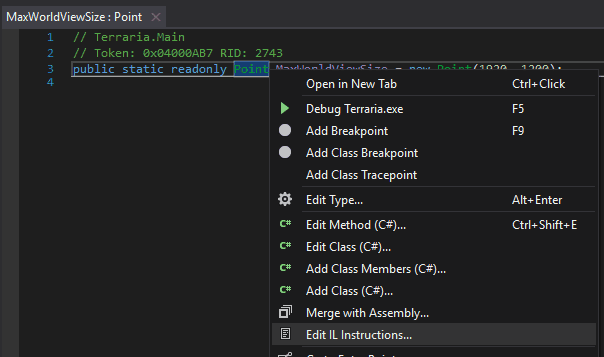
Step 6: Change Resolution Values
- Index 716 (0x780) → Width (monitor width − 1)
- Index 717 → Height
Example: 3840 width → 0xEFF
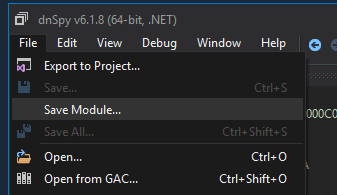
Step 7: Save the Executable
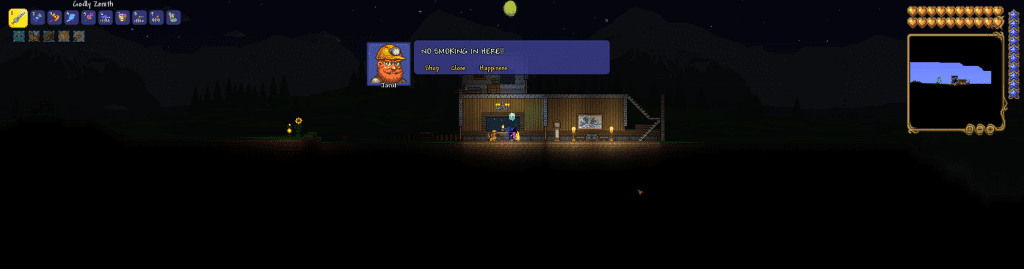
Launch Terraria — widescreen zoom is now fixed.
Final Thoughts
Terraria shines when the full world is visible — and ultrawide monitors deserve proper support. Whether you prefer an automated script, manual hex editing, or deep dnSpy customization, this guide gives you full control over Terraria’s 1.4.5 widescreen behavior.
For more PC gaming fixes, mods, and performance guides, stay tuned to BRGeeks.