
FINAL FANTASY VII can run extremely well with modern enhancements, but only if your base compatibility settings are correct before you install the larger mod stack. A wrong update channel or missing runtime is usually what causes launch and feature issues.
This walkthrough covers the full setup flow for 7th Heaven on the new Steam release, including the exact settings path for Canary builds, the core mod categories to install next, and the current status of achievements and official-style features.
Compatibility First: Switch to Canary Builds
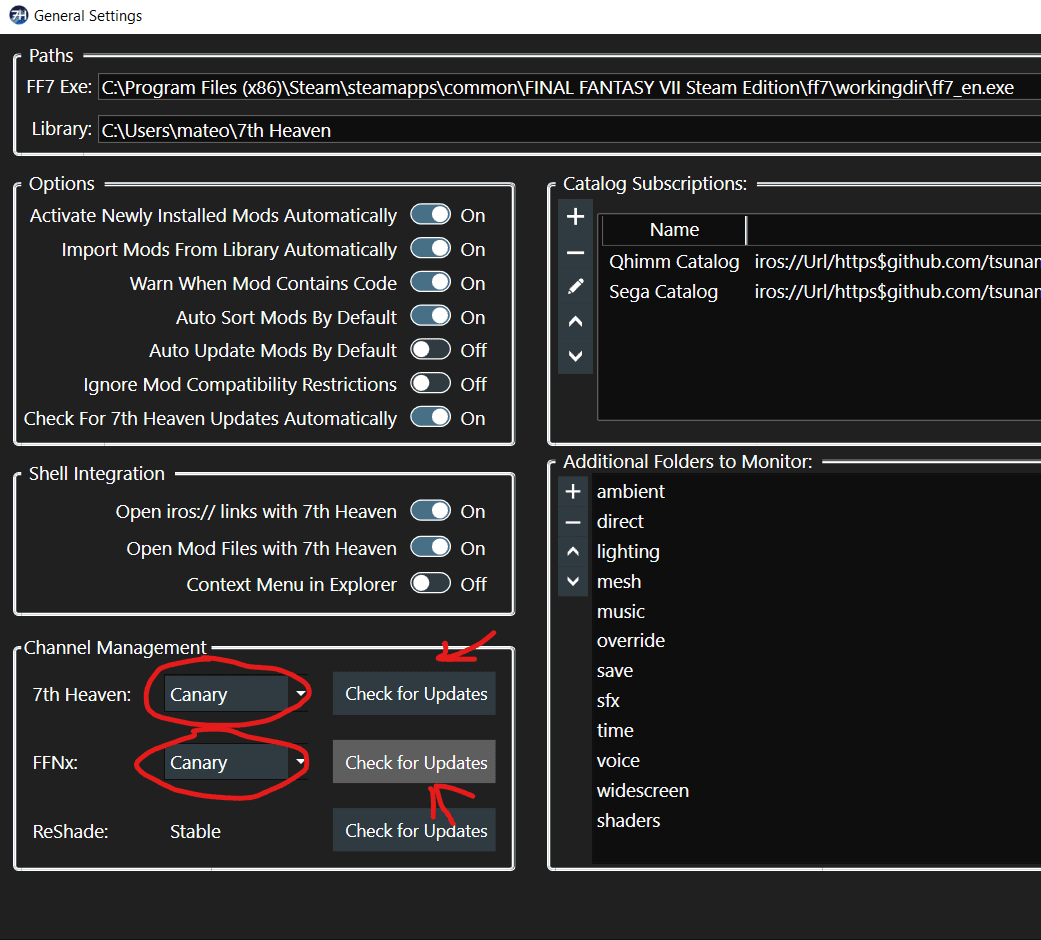
Before touching your mod lineup, move both update channels to Canary so FINAL FANTASY VII uses the latest compatibility work from FFNx and 7th Heaven.
- Open 7th Heaven.
- Go to General Settings.
- In the update channel dropdowns, choose Canary for both 7H and FFNx.
- Click Check for Updates.
- When prompted to update, click Yes.
- Install both required runtimes when prompted: Visual C++ and .NET Desktop Runtime.
- Click Save at the bottom of settings.
Once this is done, open Browse Catalog to install your core mod set, then go to My Mods and press Play!
Core Mod Stack to Install After Updating
After the compatibility layer is updated, install the community-maintained must-have stack for a remastered-style experience that stays faithful to the original game while modernizing visuals, controls, and presentation.
Primary reference list: FF7 “Must” Install Mods (Qhimm Forums)
Backup archive reference: Wayback snapshot index for the same thread
- Cosmos FMV: Reworks pre-rendered/CG presentation.
- Cosmos Limit Break: Extends and upscales field backgrounds for widescreen play.
- Cosmos Gaia: Improves world map rendering and analog control behavior.
- 60 FPS Gameplay: Smooths gameplay and combat flow.
- Cosmo Memory: Upgrades audio, ambience, and footstep feedback.
- Enhanced Stock UI + Aavock ESUI: Modernizes interface readability and layout.
- NinoStyle: Character model overhaul aligned with official art direction.
- SYW Unified Mods: Broad upscale pass across major visual assets.
- Shinra Archaeology Cut: Retranslation options plus additional content and feature set.
- FFNx FF7Music: PS1-style music behavior and playback improvements.
Achievements, Boosts, and Feature Status
Update noted in the guide (28 Feb 2026): achievements are reported as working in the latest Canary build, and manual edits to FFNx.toml are no longer required for this part of setup.
Enable achievements in the current setup
- Open Game Driver Settings > Advanced.
- Set Steam Compatibility to ON.
Equivalent options for disabled launcher boosts
If official launcher boosts are unavailable in your configuration, use these in 7th Heaven:
- Speed Boost (x3): Use Speed Hack.
- No Encounters: Use the Random Battles toggle.
- Battle Assist (HP/ATB/Limit): Use PostScriptThree for full ATB and invincibility-style support.
- Other utility features: Auto-attack, skip movies, and soft reset are available via shortcuts.
- Gameplay Tweaks (Qhimm Mod): Additional tweak bundle and cheat-style options.
Current limits to keep in mind
- Full HP and Full Limit Break boosts: still listed as missing.
- Cloud saves and autosaves: no official support in this modded flow, so save manually.
- Language support: primarily tuned for English; for other languages, use re-translation options from the catalog.
Community Credits and Tooling Contributors
This setup relies on long-running community and developer work across multiple projects:
- Tsunamods community: coordination, testing, and ecosystem momentum across mod releases.
- Qhimm community: long-term hub for tools, research, documentation, and technical discussion.
- FFNx team: core driver/framework work that enables modern rendering and compatibility behavior.
- Kuraudo: key technical guidance around Canary setup and feature-state updates, plus curation of the must-install mod list.
Final Pre-Launch Checklist
- Verify both update channels are still on Canary after updates complete.
- Confirm required runtimes installed successfully.
- Install core mods from the must-have list in a stable order.
- Enable Steam Compatibility under Game Driver Settings > Advanced.
- Create a manual save routine before longer sessions.
Thanks to MashuTenshi for sharing this guide!